:quality(80):format(webp))
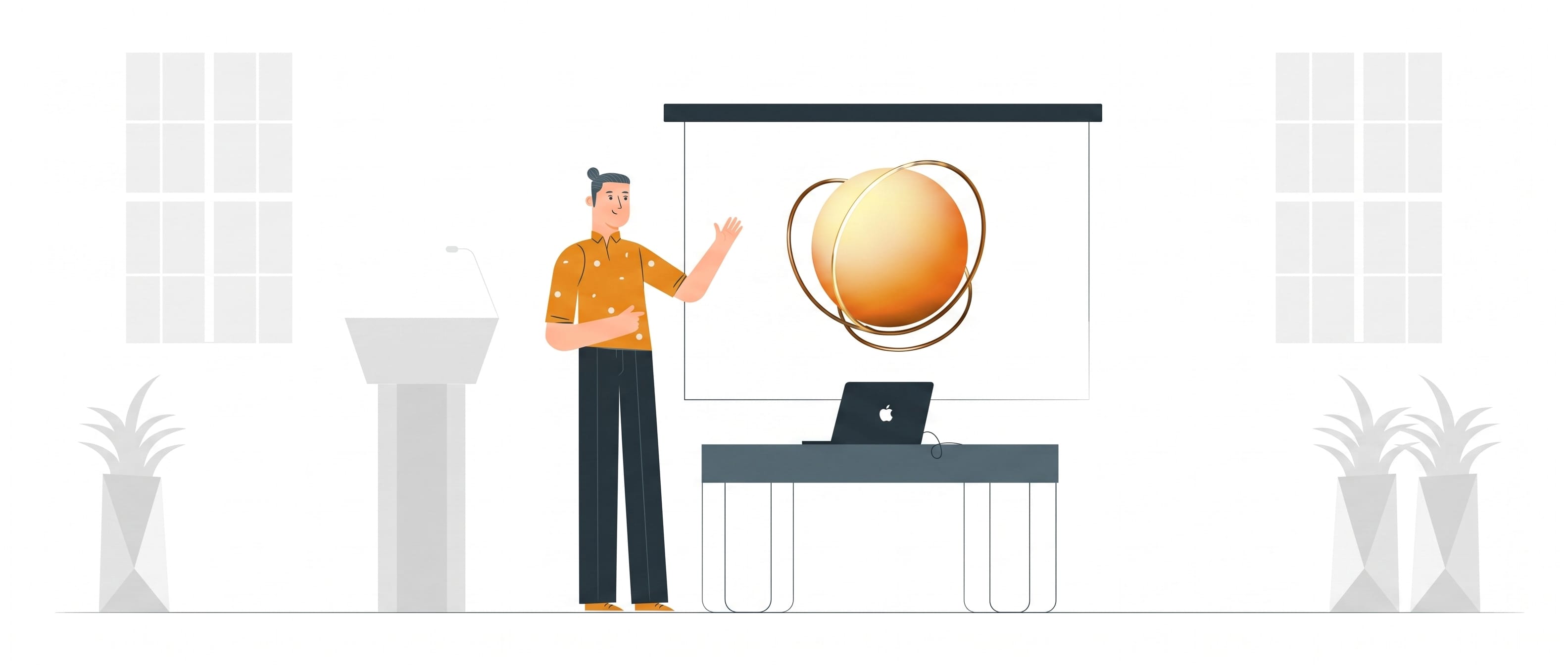
3D models are becoming increasingly popular in many industries.You have many advantages in conjunction with PowerPoint. We show how you can insert and animate 3D models in PowerPointi‑pointinghere.
Advantages of 3D models in PowerPoint
The wholeclear added valuethat an (animated) 3D model offers?Issues can be explained much more clearly.Especially for very complex topics that require a lot of explanation, connections can be presented clearly and easily understandable using 3D models. In order to give the models a framework and to incorporate other important information,A PowerPoint presentation is particularly suitable for integrationof 3D models.
PowerPoint offers the possibility of depicting machines, objects, people or even houses with 3D models. There are hardly any limits to the possibilities of PowerPoint 365 when it comes to 3D models - you can use that to your advantage!
TheAnimating 3D modelsin PowerPoint takes visualization to another level, allowing you to showcase your content perfectly! This also keeps your audience's attention very high because visual stimuli are created. 3D models in PowerPoint presentations are eye-catchers and enrich your presentation, as it can appear more exciting, interesting or even more captivating to your listeners.
Design PowerPoint with 3D models
The program offers you numerous options so that you can design your PowerPoint presentation with 3D models. Under the„Insert“tab you can easily get to the sub-item„3D models“. Now click on„From online sources“and a variety of different PowerPoint 3D models will open up to you. Here you have the option of choosing both animated and rigid models.
With animated PowerPoint 3D models, the movements occur without your intervention. You can stop or start the animation at any time using a button.
But what is particularly important with PowerPoint 3D models are thedifferent scenes. So that you can show the animations from different perspectives, e.g. For example, to be able to explain various processes in more detail, proceed as follows:
Open PowerPoint, mark your PowerPoint 3D models and call up the„Animations“tab.
Here you can see that In addition to the effects„Turntable“ or „Arrive“ other scenes are available. You can animate each 3D model in different scenes in PowerPoint. How many scenes are available depends on the respective 3D model (with the maximum being 18 different scenes).
You can test them by clicking on them one after the other in the ribbon. With a click of the mouse you can select the scene that will be displayed when you give your PowerPoint presentation. This will help you find the right representation of the PowerPoint 3D model for your presentation.
TIP:You can also show several scenes during your presentations! To do this, simply select the„Animations“tab and then the command„Add animation“. There are almost no limits to the possibilities with PowerPoint 3D models in presentation.
PowerPoint Create and use 3D models
You don't necessarily have to use the 3D models prefabricated by PowerPoint. It is also possible for you tocreate your own 3D objectsand use them in different ways. OurPortfolioprovides some inspiration for this.
So that the 3D object fits perfectly into your PowerPoint presentation, you canrotate it, color it, insert an image into the object or add text. It is also possible to add shadows and color gradients as well as a shape contour.The lighting conditions and the material are particularly important for 3D models and objects.
You can make all of these settings in PowerPoint with regard to 3D models. If you don't have the time or energy to delve into this topic,feel free to contact us!We ati‑pointingwill be happy to help you find exactly the PowerPoint 3D models that optimally support your presentation and underline your statements, so that your presentation is a complete success and you Be able to inspire your listeners!
PowerPoint Have 3D models animated by i‑pointing
Are you interested in how you can use 3D models with PowerPoint? We at i‑pointing have in ourlistot many services with which we can help you in the PowerPoint area.
Take advantage of our relevant expertiseand valuableReferences. We know what's important if you want to create and animate 3D models with PowerPoint. We also offerservices such as PowerPoint trainingso that you can learn how best to use the program in the long term. This is how you can use 3D models effectively with PowerPoint.
Do you have any questions about our services or would you like to know how you can create and animate 3D models with PowerPoint?Then simply contact us.
We look forward to your inquiry and will take care of your concerns about PowerPoint and as quickly as possible 3D models.

:quality(80):format(webp))
:quality(80):format(webp))
:quality(80):format(webp))